Setup your Login & Profile
WATCH - Setup Overview
STEP-BY-STEP Setup
Laundry Lady Portal Link (click here)
1. Login and Setup
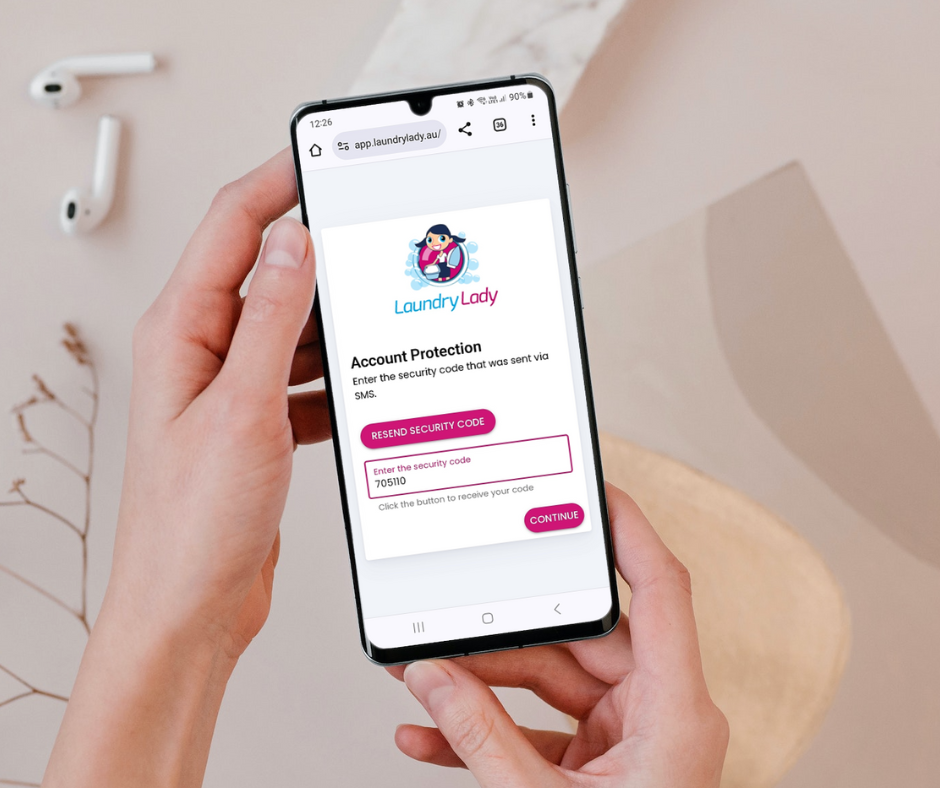
Click Account Activation link sent to you via email:

Once you have set up your password, your account will be enabled and you will need to verify using a secruty code sent to you via SMS. Then, you're ready to get started.
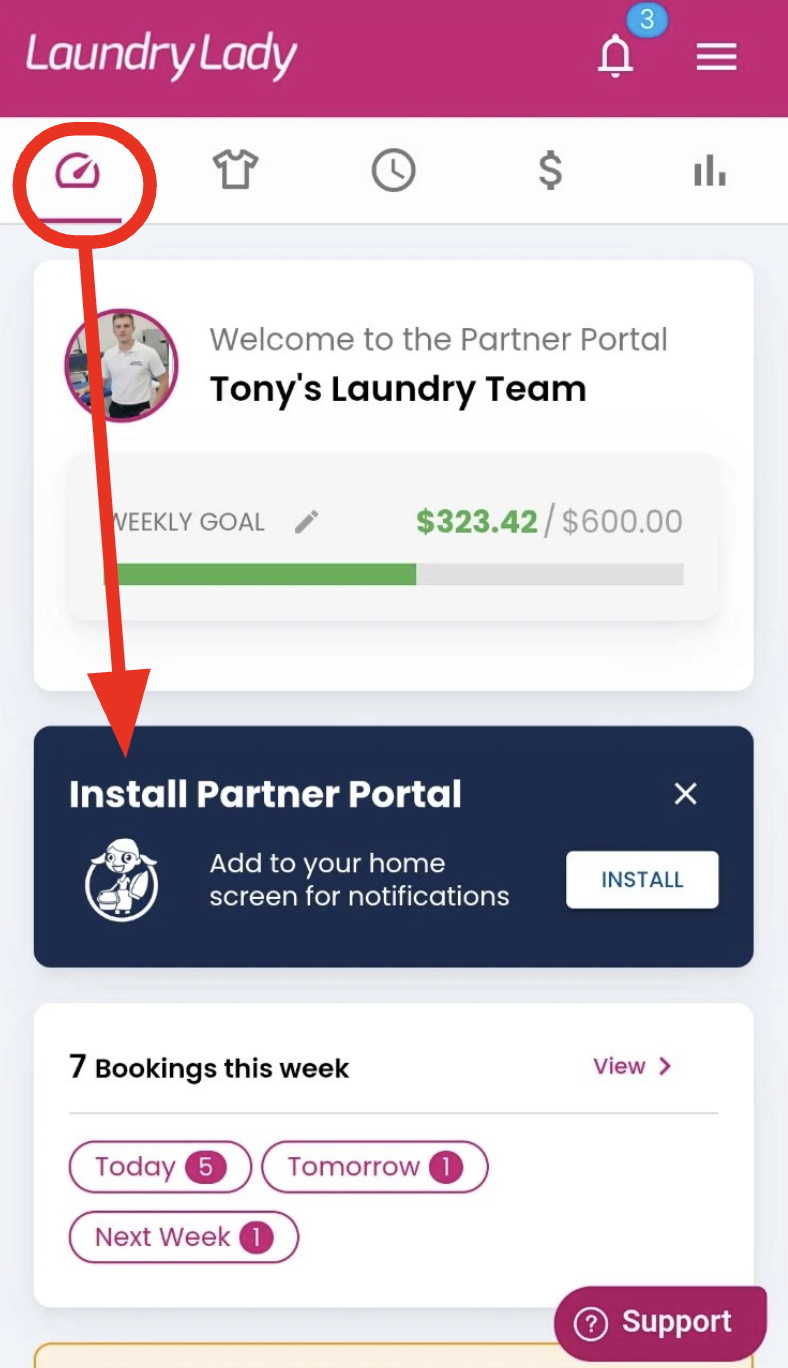
2. Saving to home screen
For iPhone:

For Android:

3. Check your profile information is correct
Once logged in, you will need to check your details are correct.
From the DETAILS tab (cog icon) you can check that your profile information is correct and edit yourself.
This includes contact details, bank details, profile pic etc.
IMPORTANT: Please ensure as a key priority that your bank details are correct under the cog tab section to ensure correct payment of commissions.


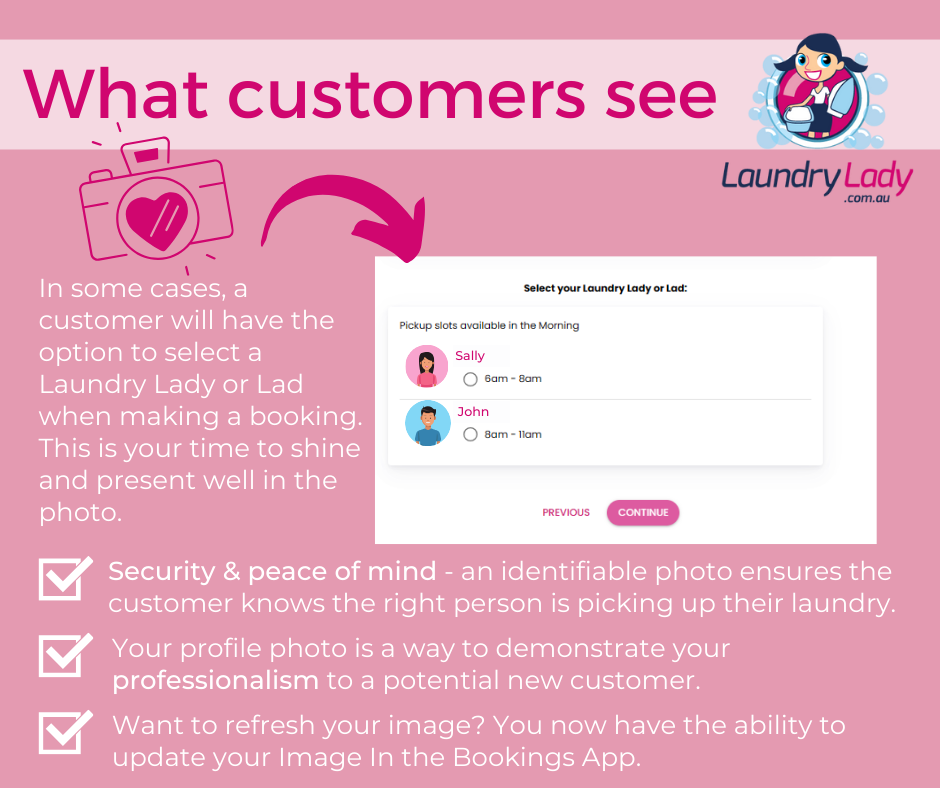
Updating your photo - within your profile section you can edit your headshot:



Group/Team photo tips:



4. Set your weekly targets
This is how much you would like to be earning each week (ex applicable tax). This is important for us to understand your capacity so that we can make our marketing work for you.
You can access the Weekly Target box in FINANCIALS under the dashboard/graph icon. Click on the pencil in the top-right corner of the pink Weekly Target box to edit and click UPDATE to confirm.

5. Check your locations
Click on PICKUP LOCATIONS found under the clock icon and see location groupings. This shows both location list and map view. Check these are all correct and make note of any changes you may need to alert us to.
Locations can now be customized to the individual. If you want to change these - remove or add locations - please let let us know.

6. Check your schedule
This is your permanent schedule of booking times and will be allocated to your pickup locations. Pickup times are now a pickup window, not a specific time, meaning you can collect laundry at any time within that window. These are set on the hour, so will start before and after your regular timings.
SCHEDULE is found by clicking on the clock icon and navigating right, to the SCHEDULE tab.
You can check day, and time window, from this view.

7. Check your washing vs. ironing capacity
Check your ironing/washing capacity for each pickup window. This is the maximum number of ironing and/or washing jobs you can collect per window. Once that capacity is reached, customers will not be able to make any more bookings of that type with you in that particular time window.
This is your permanent washing/ironing capacity for each pickup window.

8. Manually updating your roster changes
This is for temporary changes to your pickup times. For regular changes, please let Head Office know via the CONTACT US form.
See instructions below on how to:
- Add a Timeslot (pink and white plus button)
- Edit an existing Timeslot (click on green time window)

Editing current roster entry:

Adding new roster entry:

Can I access the new system on my laptop or does it have to be on the phone?
You can access it on both your phone or your laptop.
- Choosing a selection results in a full page refresh.
- Opens in a new window.